Install
The web installer
Outcome: a working operator account, tested mail settings, and an installer that is closed for good.
The installer lives at /install on your site. It runs once, after the app is deployed and /api/health answers. It is used on cPanel, Render and your own computer. On Vercel, the build creates the operator account instead.
The setup token
The installer is locked until you prove you control the server. When the app starts and is not yet installed, it prints a setup token to its log:
Mailnib is not installed yet.
Open /install in your browser and enter this setup token:

    (a 43-character code)

The token is also stored in storage/.install/setup-token.
It stops working when installation finishes.
Where to find it:
| Host | Where the token is |
|---|---|
| cPanel | File Manager → storage/.install/setup-token in the application folder, or the log file named on the Setup Node.js App page (often stderr.log). |
| Render | The service's Logs tab. |
| Your computer | The terminal where you started the app. |
| VPS | The installer printed it at the end; or sudo cat /opt/mailnib/storage/.install/setup-token. |
If the storage folder is not writable, the token is kept in memory only and a new one is printed each time the app restarts. Fix the folder permissions and restart.
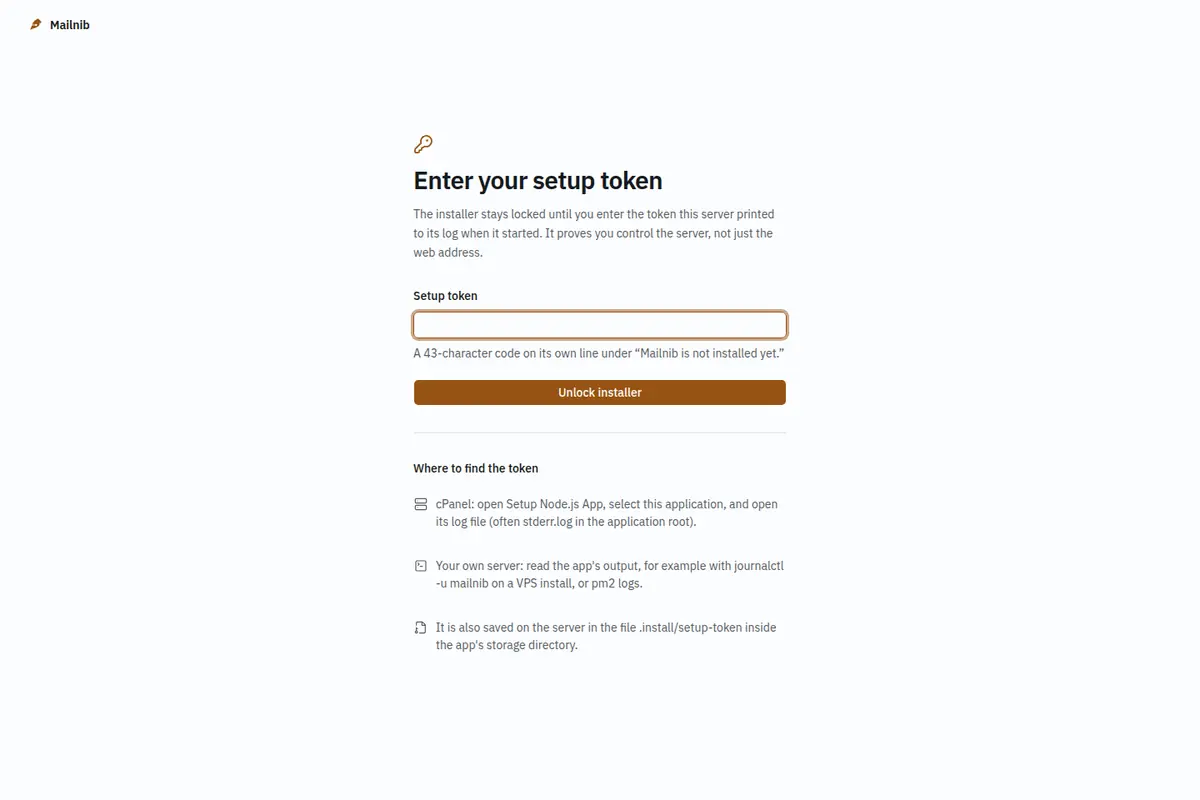
Paste the token and click Unlock installer. The browser keeps a secure cookie for /install, so you are not asked again in the same browser.
Step 1: Environment
The installer tests the server as it runs right now: Node.js version, whether the storage folder can be written, DATABASE_URL, the PostgreSQL connection and version, APP_KEY, and whether it can write the configuration file. Anything that fails says exactly what it found and how to fix it.
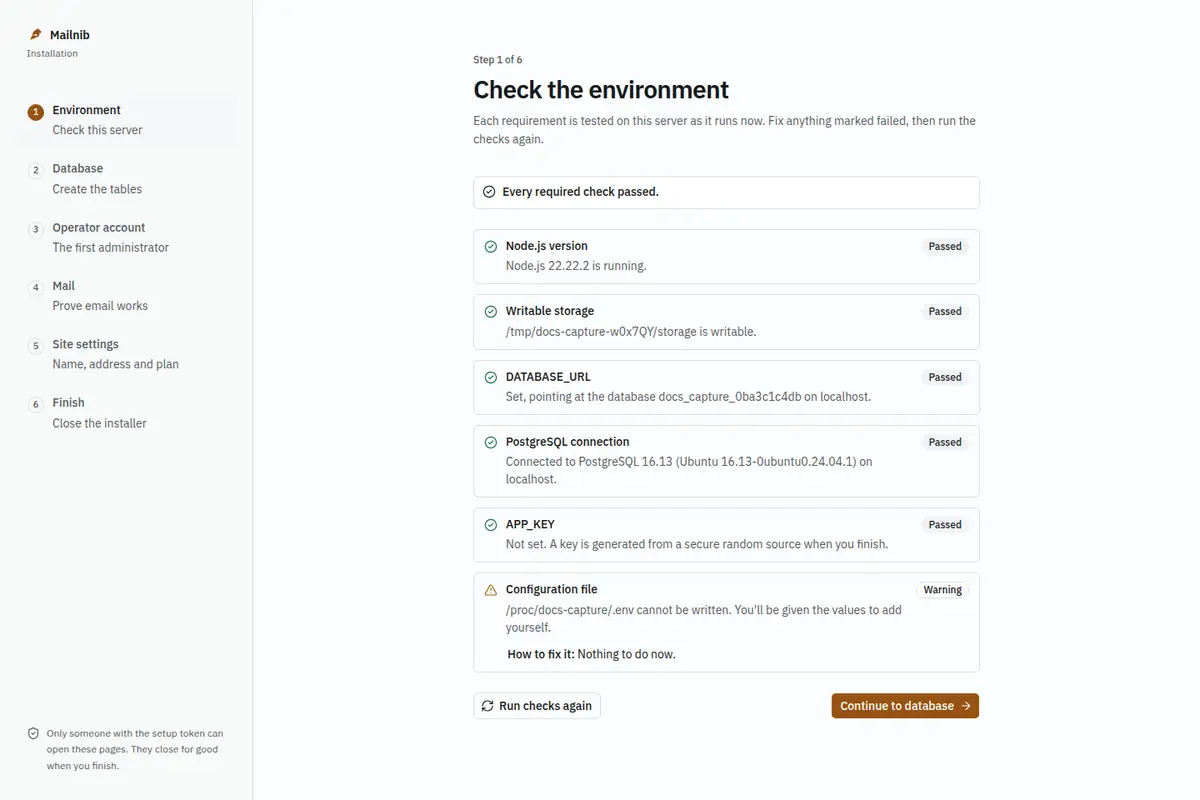
A Warning does not stop you. In the example above the configuration file cannot be written, so the installer will show the APP_KEY at the end for you to add by hand. Click Continue to database.
Step 2: Database
The connection comes from DATABASE_URL; the password is never shown. Click Run migrations. Each migration is listed as it is applied, then the four shipped plans (Free, Starter, Professional, Agency) are installed.
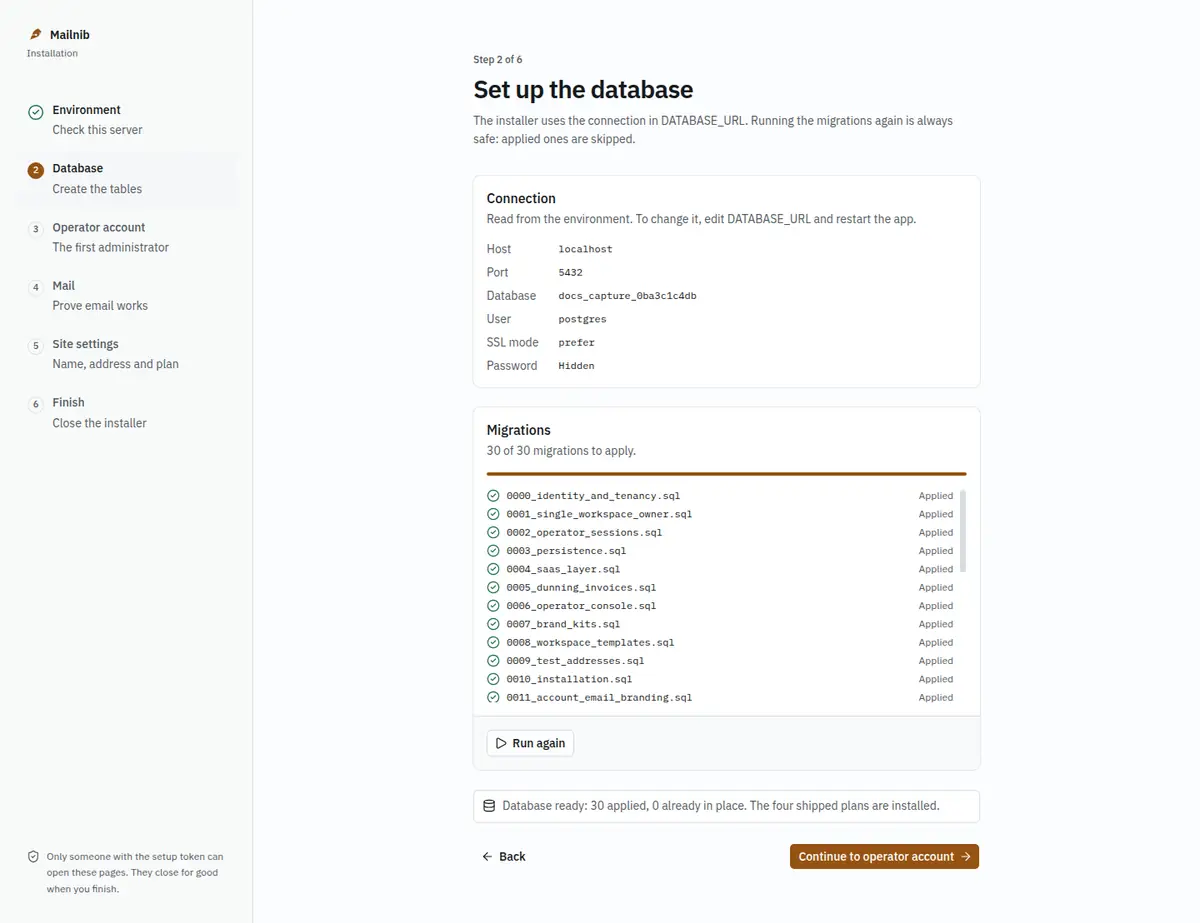
Running the migrations again is always safe: applied ones are skipped. If one fails, it is rolled back, nothing after it runs, and you can fix the cause and click Run again.
Step 3: Operator account
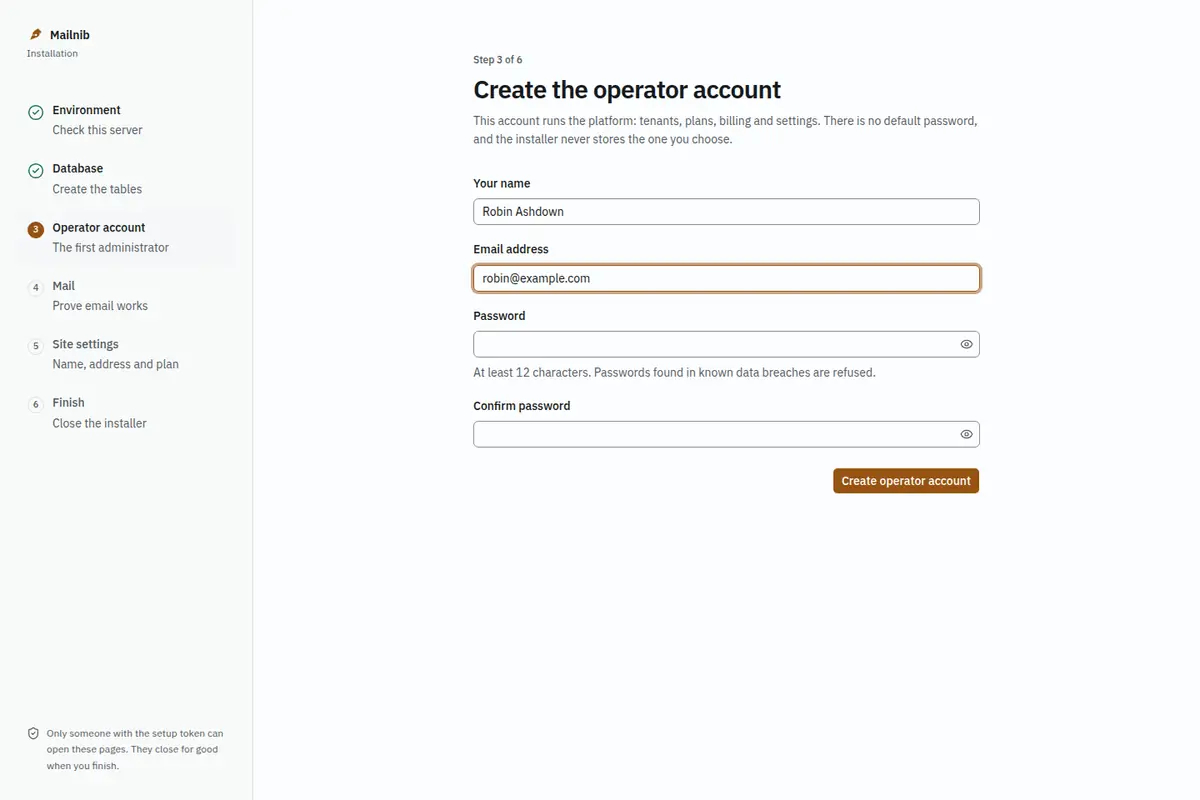
This is the account that runs the platform: tenants, plans, billing and settings. Enter your name, email address and a password of at least 12 characters. Passwords that appear in known data breaches are refused. There is no default password.
Step 4: Mail
The platform sends account confirmations, password resets and design test sends. Choose SMTP server and enter your provider's details, then Send test email to an inbox you can open. You can only continue once a test with those exact settings has succeeded; if you change a field afterwards, send another test.
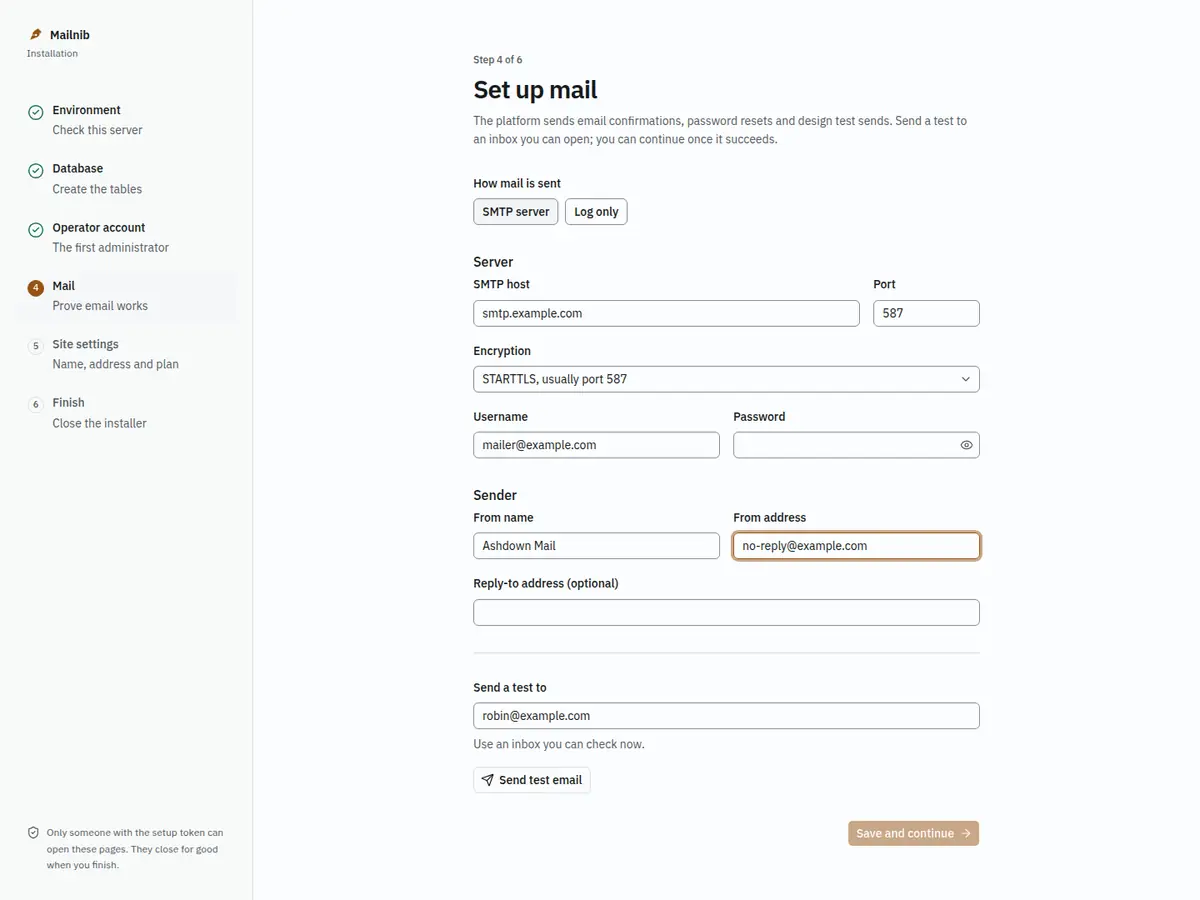
Choosing Log only lets you finish without SMTP, but nothing is delivered: new customers cannot confirm their email and nobody can reset a password until you set up SMTP in Email (SMTP) settings.
The most common SMTP errors, and their fixes, are in Troubleshooting.
Step 5: Site settings
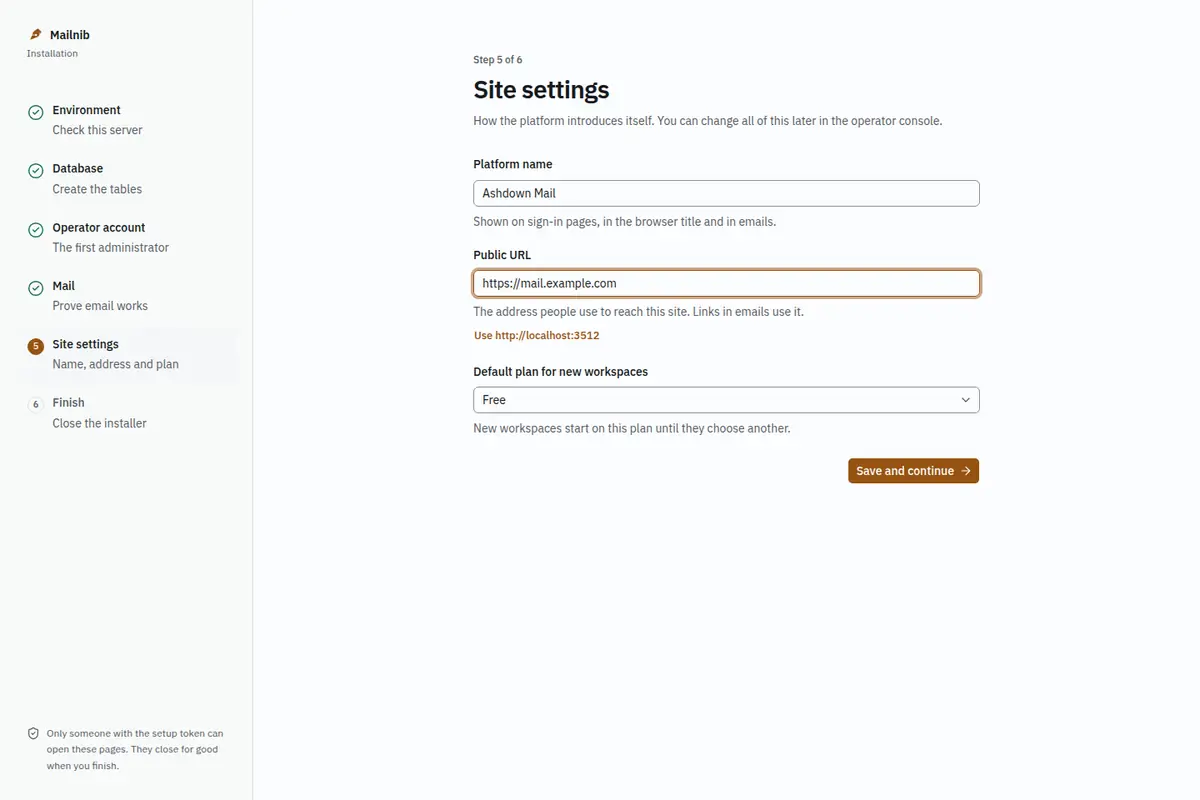
Enter the platform name your customers will see, the public URL they use (with https://), and the default plan for new workspaces.
Step 6: Finish
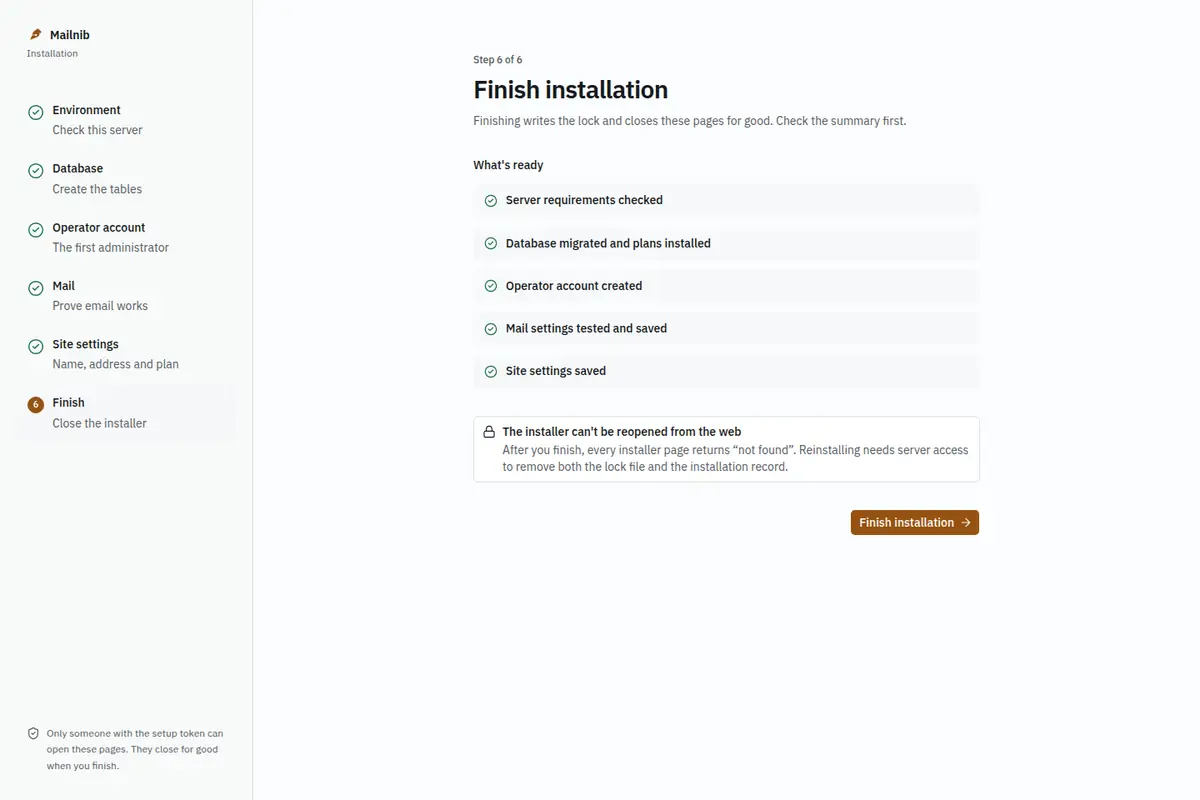
Check the summary and click Finish installation.
The installer generates an APP_KEY if you did not set one. When it can write the .env file, it saves the key there. When it cannot, it shows the key once:
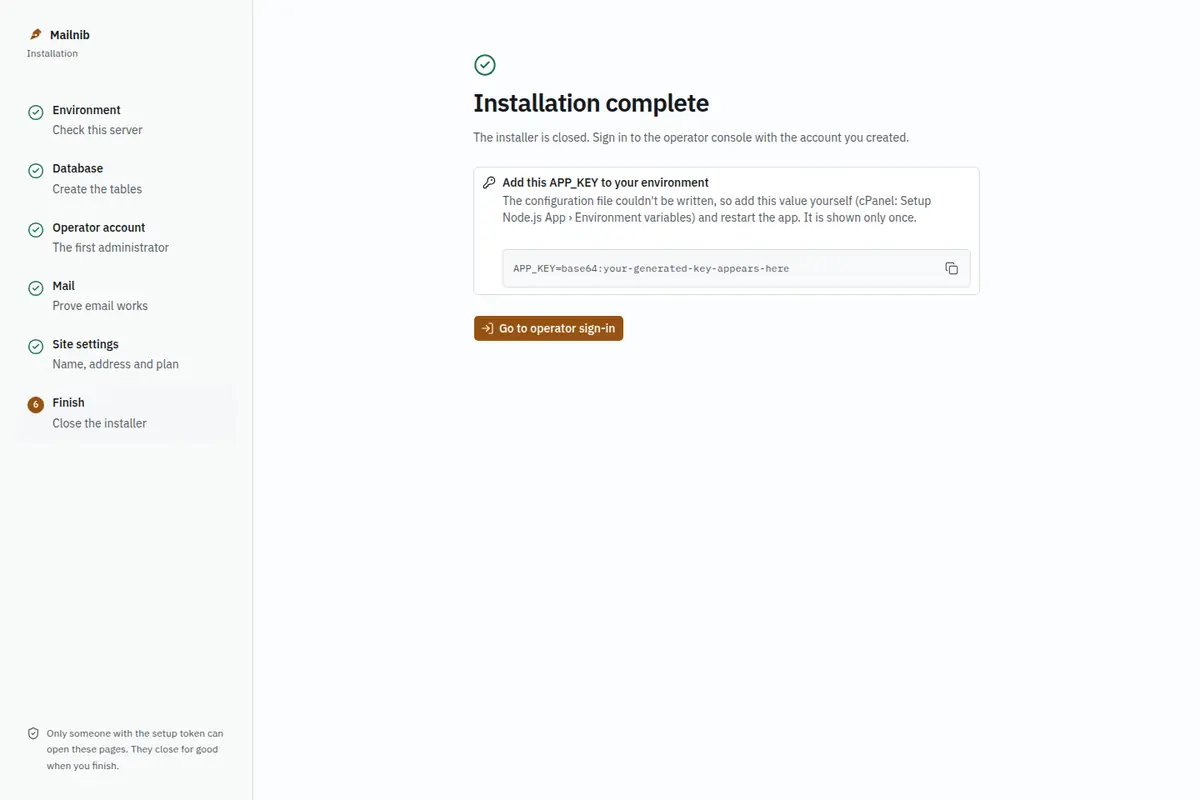
Copy it into your environment (cPanel: Setup Node.js App → Environment variables) and restart the app. Keep a copy somewhere safe.
After finishing, every /install page returns "not found", permanently. Click Go to operator sign-in, and continue with The operator console.
Resuming and reinstalling
- Progress is saved after every step. Closing the tab or restarting the app returns you to the first unfinished step.
- An installation created with
pnpm db:seedis already recorded as installed, so/installis closed on those sites. - To reinstall on purpose, stop the app, delete
storage/.installed, remove the row from theinstallationtable, and start the app again. A new token is printed.