Operator guide
Branding and white-labelling
Outcome: your customers see your product name, your colour and your logo, not ours.
Open Settings → Branding in the operator console.
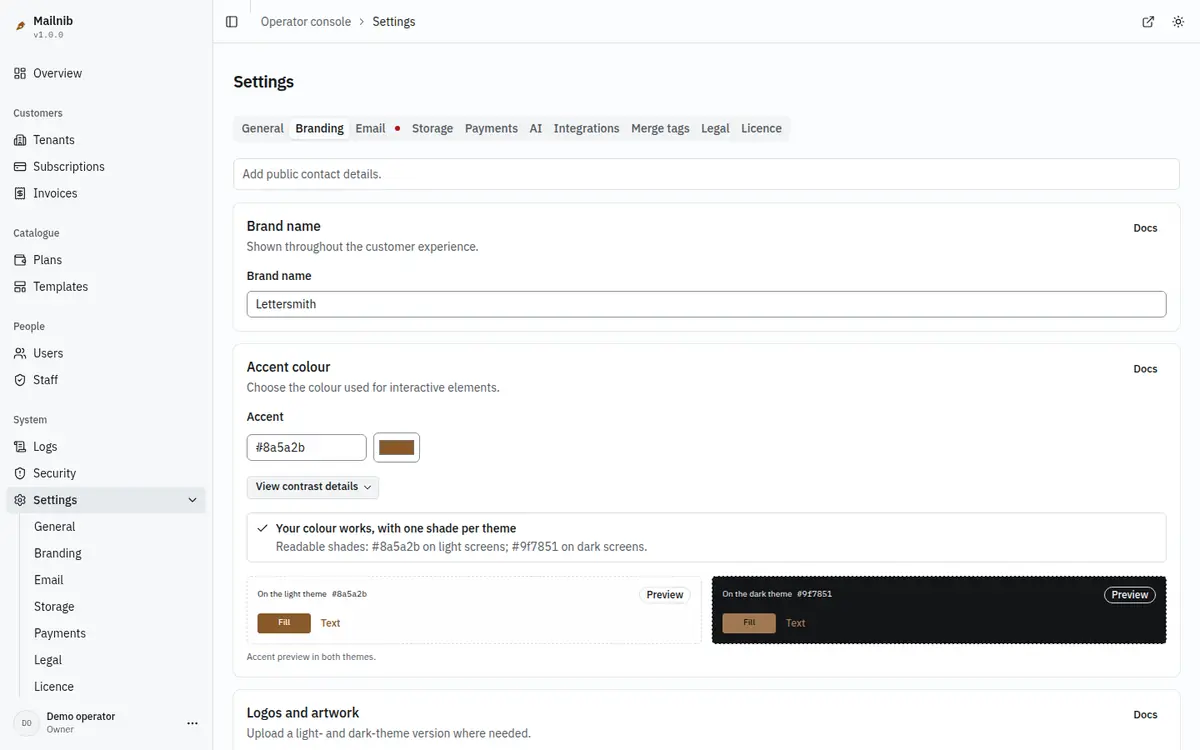
Brand name and accent colour
The brand name replaces "Mailnib" in the app header and on the sign-in pages. The web installer sets it to the platform name you entered in step 5.
The accent colour drives every button, link, focus ring and selection in the product. Type a six-digit hex value such as #8a5a2b into Accent to see how it would work: the page checks it against both themes as you type.
- Passes on both: it is used exactly as entered.
- Works, with one shade per theme: the hue stays yours, and the product uses a lighter or darker shade on one theme so text stays readable. Both shades are shown.
- Cannot be made to work: the colour is too pale or too dark to reach the 4.5:1 contrast minimum on one theme. Choose a mid-tone with more room.
Click Save changes in the bar that appears. An accent that fails the contrast check is ignored and the default colour is kept, so test it on this page first.
Logos
Upload a logo for the light theme and one for the dark theme with the Upload buttons; each saves as soon as it is uploaded. They are usually different artwork (a dark mark for light screens, a light one for dark screens), so the product shows whichever matches the theme. Images are re-encoded to PNG when uploaded.
If you upload only one, the missing theme keeps the default mark, and the console warns you.
What is applied
The brand name, the accent colour and the two logos are applied across the product.
Your customers' own branding
Your customers brand their emails separately, with a brand kit in their workspace. See Brand kit and themes.
Branding settings reference
Brand name. This name appears on public pages, in the app and in account emails.
Accent. Enter a six-digit hex colour. The app derives readable text and fill shades for light and dark themes. Link text must meet a 4.5:1 contrast ratio; the contrast report shows the resulting shades. If a shade cannot be made readable, choose a stronger or softer accent. The preview is a static sample of the resulting theme.
Assets. Upload separate logo files for light and dark backgrounds. A mark designed for one background may disappear against the other. File validation applies before an upload is saved.
Contact details. Leave individual fields empty to hide them. If every method is empty, the contact page returns 404 and its navigation links are omitted. Overview and Branding show the reminder only to operators.