User guide
Blocks and presets
Outcome: you know which block to reach for, and how to drop in a finished layout in one step.
Open the Elements tab of the inspector. Type in Search elements to filter, then drag a block onto the canvas or select a block and press Enter.
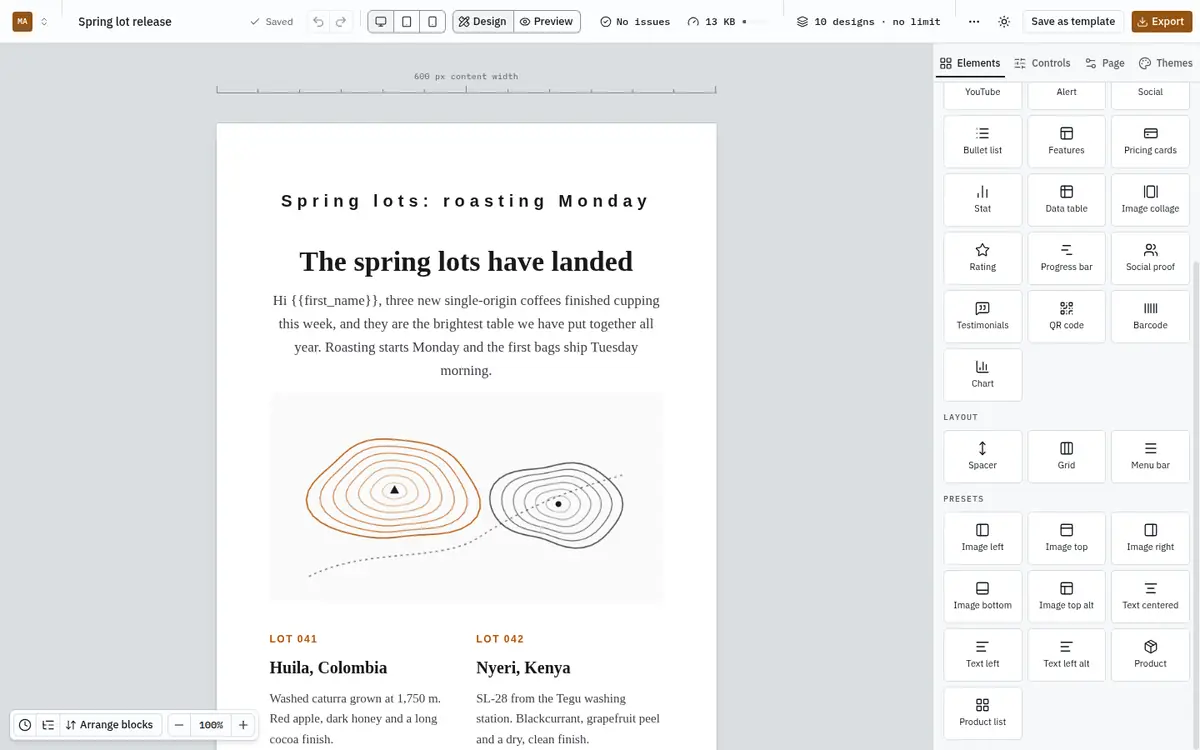
Content blocks
| Block | Use it for |
|---|---|
| Heading | Titles and section headings. |
| Paragraph | Body text, with bold, italic, links, lists and merge tags. |
| Image | A picture from your media library, with a link and alternative text. |
| Button | A call to action. Renders as a real button in Outlook too. |
| Divider | A horizontal rule between sections. |
| Video | A poster image that opens the video. Inboxes cannot play video, so readers click through. |
| YouTube | The same, from a YouTube link. |
| Alert | A highlighted notice. |
| Social | Links to your social profiles, starting from your brand kit. |
| Bullet list | A quick standalone list. |
| Features | Short feature descriptions side by side, each with a title and a line of text. |
| Pricing cards | Plans or offers side by side. |
| Stat | A large number with a label. |
| Data table | Rows and columns of figures, such as an order summary. |
| Image collage | Several images in one of five layouts. |
| Rating | Stars, sent as images so they look the same everywhere. |
| Progress bar | Progress toward a goal. |
| Social proof | A row of customer avatars with a count, such as "Trusted by 2,000 readers", and a short quote. |
| Testimonials | Customer quotes with names. |
| QR code | A scannable code, generated on your server. |
| Barcode | Code 128, EAN-13, UPC-A or Code 39, generated on your server. EAN-13 and UPC-A compute a missing check digit or verify an existing one. |
| Chart | Horizontal or vertical table-based bars with up to eight labels and values. Set Maximum to 0 for automatic scaling. |
Layout blocks
| Block | Use it for |
|---|---|
| Spacer | Vertical space. |
| Grid | Columns inside a row. On phones, columns stack by default; you can keep them side by side or reverse the order. |
| Menu bar | A row of navigation links. |
Presets
Presets drop a finished row, with several blocks already arranged, in a single step:
Image left, Image top, Image right, Image bottom, Image top alt, Text centered, Text left, Text left alt, Product and Product list.
After inserting one, every part is an ordinary block you can change or delete. One Undo removes the whole preset.
Move, copy and delete
Select a block and use the strip above it: select parent, duplicate, move up, move down and delete. For bigger rearrangements, click Arrange blocks at the bottom-left of the canvas: it shows the whole email as a list with move buttons on every row.
Show a block on one device only
In Controls, a block's visibility settings can hide it on desktop or on mobile. A hidden block is still part of the email's size, because it is still sent.