User guide
Start from a template
Outcome: a new design that starts from a finished layout instead of a blank page.
Choose a template
- Open Templates from the app navigation, or click Choose a template on the empty editor canvas.
- Pick a category (Newsletter, Commerce, Event, Announcement, Transactional) or type in Search templates.
- Preview a template, then click Use this template to create a design. In the editor chooser, search or pick a category, then click Use on a card; the eye button opens the preview. The chooser shows how many templates the library holds, Blank always comes first, and a template above your plan carries a lock.
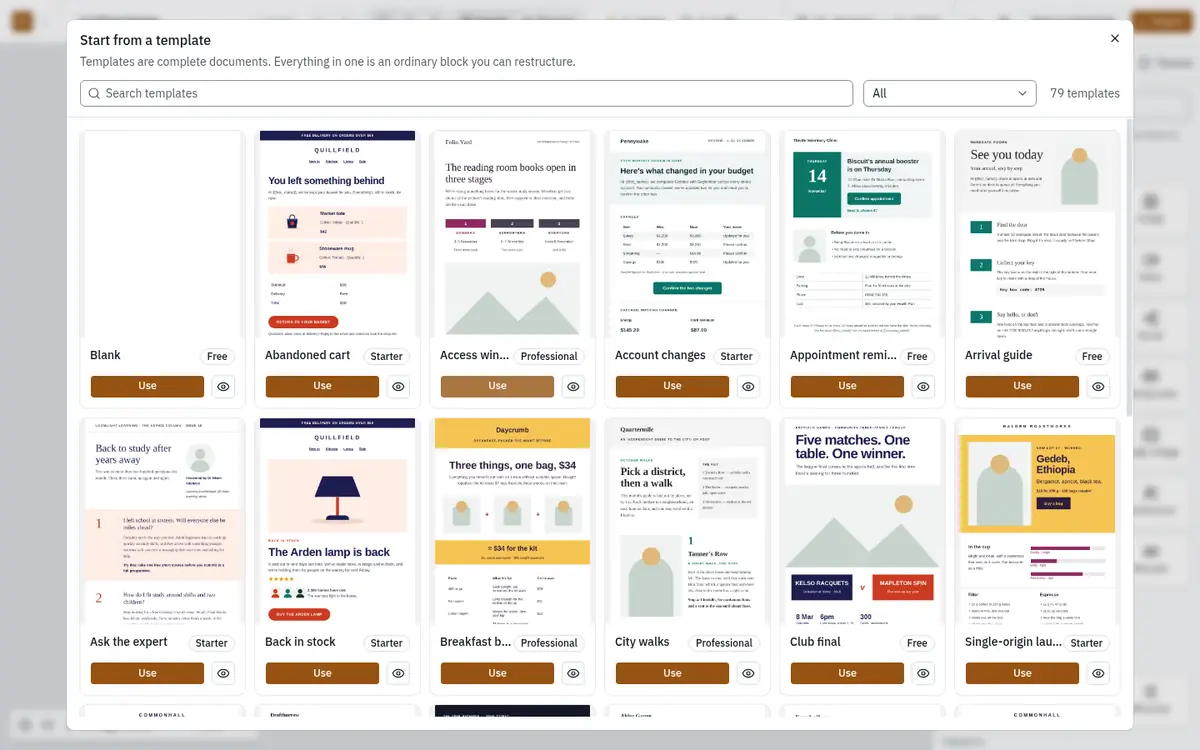
Everything in a template is an ordinary block: change the words, swap the images, delete what you do not need, or add more.
Templates your plan does not include remain visible with a lock and a dimmed thumbnail. Choosing a locked template offers an upgrade and creates no design. Blank is always first.
The preview has Desktop and Mobile views. Desktop shows the email at its full 600px layout, scaled to fit the screen; Mobile shows its 375px layout. Phones start on Mobile.
Images in templates
Sample photographs load from the built-in image host by default. The download includes drawn placeholders, which appear when the host is unavailable or the operator disables sample photos. Gallery thumbnails use hosted previews and fall back to the bundled thumbnails when they cannot load. Select an image block and choose your own image in Controls.
Save your own template
Turn any design into a starting point for your team:
- Open the design and click Save as template in the toolbar.
- Give it a name and a category, and click Save template.
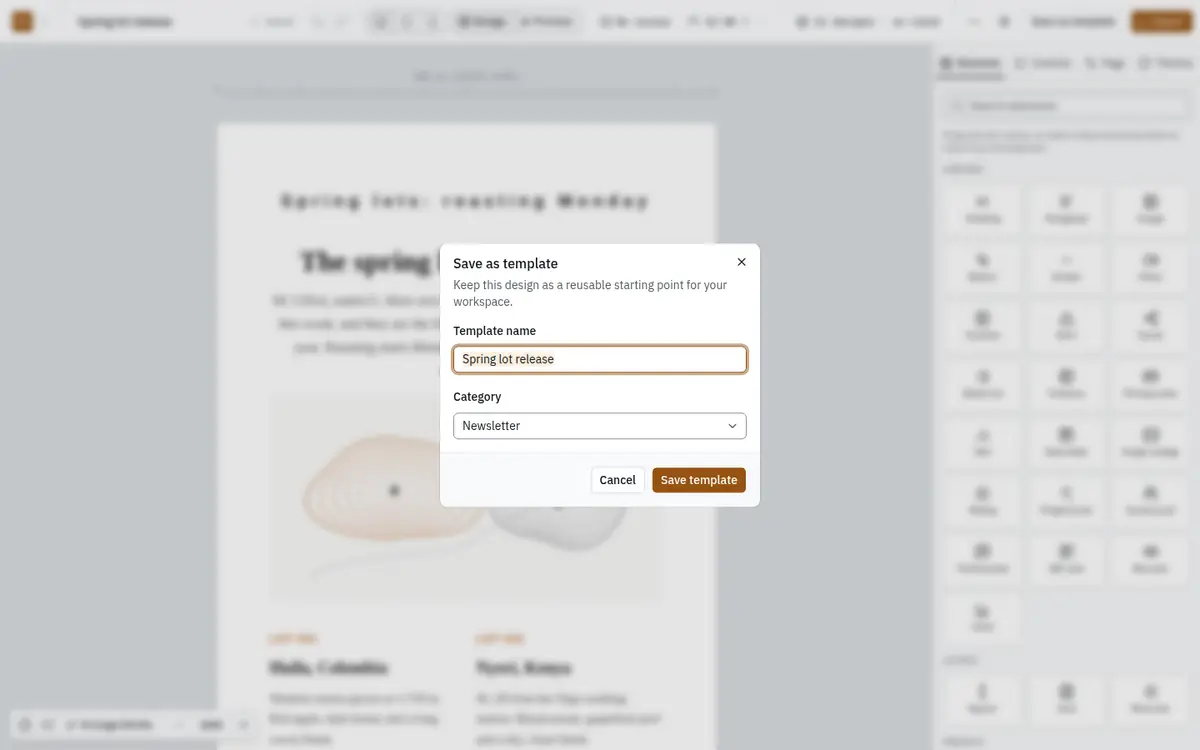
It appears under My templates at the top of the chooser, for everyone in your workspace. How many you can keep depends on your plan.