User guide
Members and roles
Outcome: each person in your workspace can do exactly what their job needs, and no more.
Open Team in the workspace sidebar. It lists every member with their role and status, the seats your plan includes, and what each role may do.
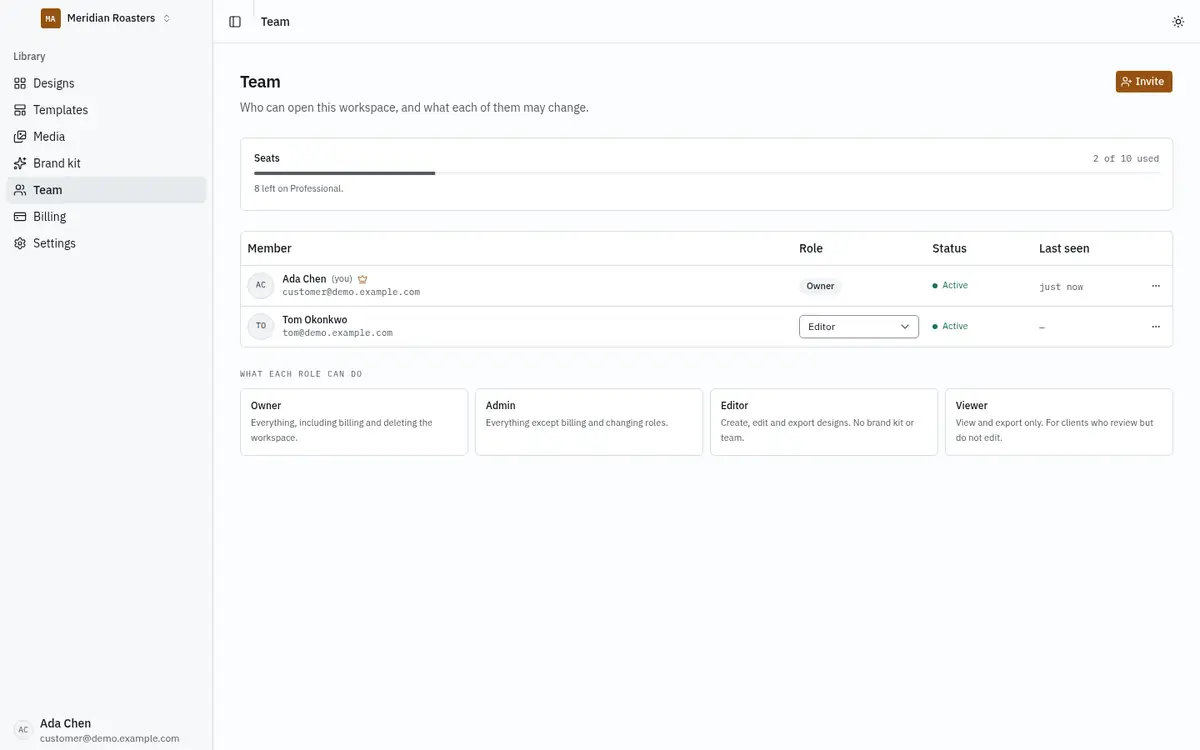
The four roles
| Role | Can do |
|---|---|
| Owner | Everything, including billing and deleting the workspace. There is exactly one owner. |
| Admin | Everything except billing and changing roles. |
| Editor | Create, edit and export designs. Cannot change the brand kit or the team. |
| Viewer | View and export only. For clients who review but do not edit. |
Permissions are checked on the server for every action, so a role cannot be worked around from the browser.
Change a role or remove a member
Use the Role menu on a member's row to change their role, or the row's actions menu to Remove from workspace. Only the owner can change roles. The owner cannot be removed; ownership has to be transferred first.
Removing someone takes away their access to this workspace. The designs they made stay.
Transfer ownership
A workspace always has exactly one owner. To hand it over, the owner opens their own row's ⋯ menu, chooses Transfer ownership, picks an active member, ticks the confirmation and clicks Transfer ownership. The new owner takes over billing and deleting the workspace, and the previous owner becomes an Admin.
The option only appears for the owner, and only when there is another active member to receive it. Invited people who have not joined yet cannot receive ownership. The transfer is checked on the server and recorded in the workspace's audit log with the old and the new owner.
Invite someone
Click Invite, enter their email address, choose a role and click Send invite. The invitation is valid for seven days and appears in the list as Invited. Use the row's ⋯ menu to Revoke invite if you change your mind; a revoked invitation can no longer be accepted and frees its seat.
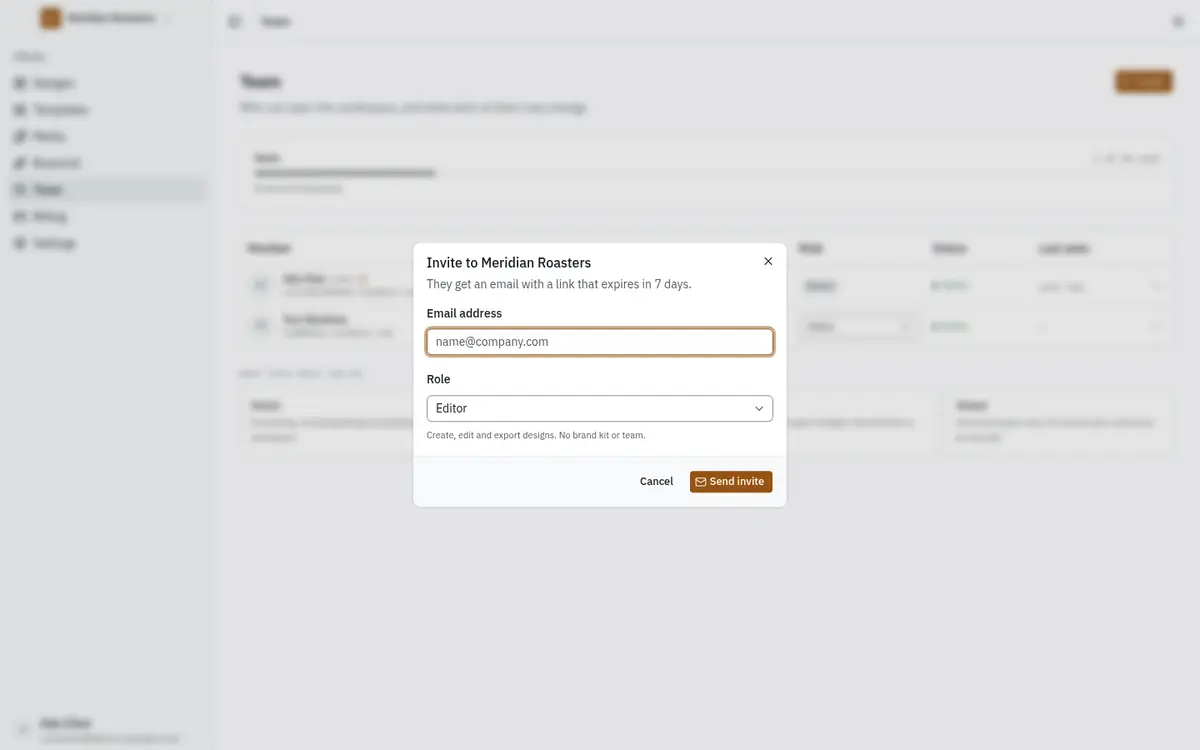
The invited person receives an email with a link to accept. If the platform has no email delivery set up, or the message could not be sent, the dialog shows the link instead so you can copy it and send it yourself. The link only works for the address that was invited, so it is safe to share with that person.
Seats
Each plan includes a number of seats, set by your operator in the plan's limits. Pending invitations count as seats. When every seat is taken, Invite is disabled and Upgrade plan opens the plan comparison; you can also remove a member or revoke an invitation to free one.