Operator guide
Payment providers
Outcome: you know how plan changes are paid for on your installation, how to approve a manual payment, how to connect a card provider and how to schedule payment reminders.
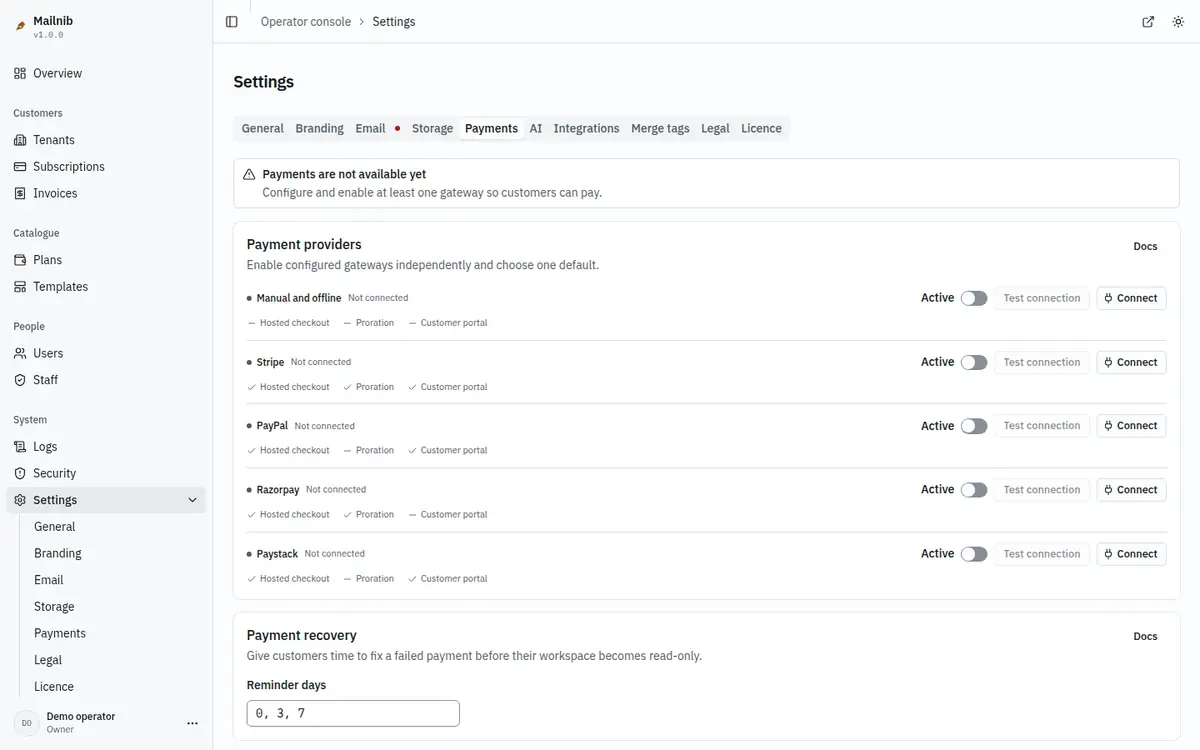
Mailnib ships five payment adapters: Manual, Stripe, PayPal, Razorpay and Paystack.
Enable gateways and choose the default
In Settings → Payments, each gateway has its own Active switch. Customers can use a gateway only when it is enabled and configured. Saving Manual instructions configures Manual; card gateways need valid credentials. Disabling a gateway removes it from new checkouts without altering existing subscriptions.
Choose Set as default beside an active, verified gateway. This preselects it in the customer’s Choose how to pay dialog; other usable gateways remain available. With only one usable gateway, the dialog is skipped unless a request is already pending or the installation is in demo mode. The demo dialog explains that only Manual payment is available. With none, Billing says payments are not available and the console warns you to configure and enable a gateway. Switching off the default moves it to the next active, usable gateway; a toast names the replacement. If no gateway is usable, no default remains. An unusable default shows its reason on the row and in the console’s System configuration checks.
Manual payments
Configure and enable the Manual provider to accept offline payments. No card is taken: your customers pay you by bank transfer or any method you choose, and you confirm each payment in the console. Open Settings → Payments → Manual → Configure and fill in Account name, Bank or payment method, Account number or payment handle and any Extra instructions. Customers see these on their request.
What the customer does
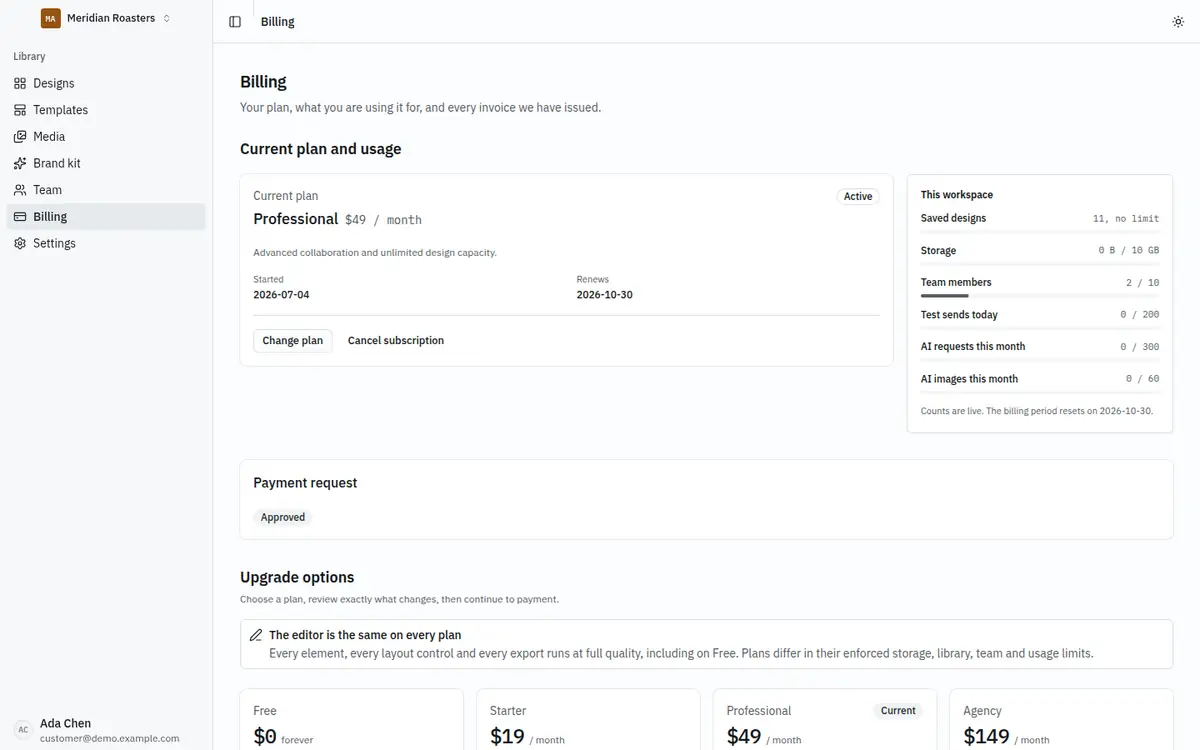
Only the workspace owner can change the plan. In Billing they choose a paid plan, then confirm Manual in Choose how to pay. Choosing a plan or opening Billing does not create a request.
- A payment request is created. It shows the plan, the exact amount, a unique payment reference (such as
PAY-1A2B3C4D) and your payment instructions. The status is Awaiting payment. A workspace can have one open request at a time, and the owner can Cancel request while it is awaiting payment. - The customer pays you, quoting the reference, then uploads proof of payment (a PNG, JPEG or WebP image up to 5 MB, with an optional note) and clicks Submit for review. The status becomes Under review, and the proof can be replaced until it is reviewed. Only members of the workspace and operators can open the proof.
- Their plan does not change yet. The workspace stays on its current plan until you approve.
Moving to a free plan needs no payment and takes effect at once.
What you do
Your operators with the Owner or Admin role handle the request; Support operators cannot. When proof arrives you get an email, and the request shows Under review on Subscriptions. Open it and read the reference, the customer's note and the proof image, then choose:
- Mark as paid. The workspace moves to the new plan immediately and a subscription is recorded for 30 days. If the workspace was read-only for non-payment, it is lifted. The customer gets an approval email. If there is no proof, you can approve only by ticking Paid without proof and giving a reason.
- Reject request. A reason is required, and the customer sees it with a Rejected status and an email. They can fix the problem and upload new proof, choose another plan, or cancel the request. A rejected request never blocks a new choice: starting another request cancels the rejected one and records the cancellation. An open request shows its plan and reference in the plan dialog, with Cancel that request and continue to replace it.
Subscriptions has a status filter for Awaiting payment, Under review, Approved and Rejected. Rejected requests show the reason, using the same status label as the customer’s Billing page.
Every decision is recorded in the operator audit log with your name, the plan and the reason, and the request itself is recorded in the workspace's audit log.
Mailnib does not renew or expire a Manual subscription on its own. When the 30 days are over, ask the customer to make a new request, or change the plan yourself from the tenant's page.
Connect a card provider
Open Settings → Payments and click Connect beside the provider.
- Paste the keys from the provider's dashboard and click Save keys. There is no mode switch. Stripe and Paystack modes are read from
sk_test_orsk_live_; Razorpay usesrzp_test_orrzp_live_. PayPal connection testing tries its fixed live OAuth host, then its fixed sandbox host, and records the host that accepts the credentials. The detected mode appears as a read-only operator badge and is never shown to customers. Keys are encrypted with a key derived from yourAPP_KEYbefore they are stored, and are never shown again; only the last four characters of the main key are displayed. - Saving runs a read-only connection test and stores its result with the encrypted keys. Valid keys are ready for customers at once when the gateway is active. A failed save shows the provider’s reason and stops new checkouts. Test connection reruns the same check.
- Open Admin → Plans, select each paid plan and save its provider id under Provider prices. See where to find each id below.
- Enable the gateway. Click Set as default if it should be preselected; several enabled, configured gateways can take payments together.
Replacing keys verifies the connection again before taking payments. Calls use fixed provider hosts through the guarded HTTP client.
Keys can also come from environment variables, which are used when nothing has been saved in the console; the page then says so. The first read verifies environment-only keys automatically. Saved keys win.
| Provider | Variables |
|---|---|
| Stripe | STRIPE_SECRET_KEY, STRIPE_WEBHOOK_SECRET |
| PayPal | PAYPAL_CLIENT_ID, PAYPAL_SECRET, PAYPAL_WEBHOOK_ID |
| Razorpay | RAZORPAY_KEY_ID, RAZORPAY_KEY_SECRET, RAZORPAY_WEBHOOK_SECRET |
| Paystack | PAYSTACK_SECRET_KEY |
Create the webhook
The provider's configure panel shows its webhook address with a copy button, and how many events arrived in the last 24 hours. In your provider's dashboard, add a webhook endpoint pointing at your installation:
https://your-domain/api/webhooks/stripe
https://your-domain/api/webhooks/paypal
https://your-domain/api/webhooks/razorpay
https://your-domain/api/webhooks/paystack
Copy the signing secret (or, for PayPal, the webhook ID) the provider gives you into the matching variable. Webhooks are the source of truth for subscription state: a customer's plan changes when the signed event arrives, never because a checkout page redirected back. Events with a bad signature are refused, and repeats of an event already handled are ignored.
When a customer confirms a card gateway, Change plan sends customers to the provider's hosted checkout, and their plan changes when the provider's webhook confirms payment.
Failed payments and the reminder scheduler
When a card provider reports a failed renewal, the workspace owner gets reminders on days 0, 3, 7 and 14 after the failure. After the last one the workspace becomes read-only until it is paid. Nothing is deleted. Change the schedule with Reminder days on Settings → Payments: whole numbers of days in increasing order, such as 0, 3, 7, 14.
Mailnib has no timer or worker of its own, so something on your side has to ask it, regularly, to send the reminders that have fallen due. That is one HTTP request:
- Set a long random secret as
CRON_SECRETin your environment (for exampleopenssl rand -hex 32) and restart the app. Without it the endpoint answers "not found" to everyone, so nothing can trigger it by accident. - From any scheduler, send a
POSTto/api/jobs/dunningwith the secret as a bearer token:
curl -fsS -X POST -H "Authorization: Bearer $CRON_SECRET" https://your-domain/api/jobs/dunningIt answers {"due":0,"sent":0}: how many reminders were due and how many were sent. A wrong or missing secret gets a 404.
| Where you host | How to schedule it |
|---|---|
| VPS or any server with cron | crontab -e, then */10 * * * * curl -fsS -X POST -H "Authorization: Bearer YOUR-SECRET" https://your-domain/api/jobs/dunning |
| cPanel | Cron Jobs, every 10 minutes, with the same curl command. |
| Render | A Cron Job service running the curl command every 10 minutes, with CRON_SECRET set on it. |
| Vercel | Set CRON_SECRET in the project's environment variables. The included vercel.json schedules the job once a day, which Vercel's Hobby plan allows; on Pro, change the schedule in apps/web/vercel.json to every 10 minutes. Vercel sends the secret itself. |
Run it at least every few minutes if you can. Each reminder is claimed in the database before it is sent, and a claim expires after five minutes, so a run that was interrupted is picked up by the next one. Delivery is at least once: if the mail server accepts a message and the app stops before it can record that, a later run may send the same reminder again. Watch your transactional mail health on the console overview, where the Scheduled work line shows whether CRON_SECRET is set.
Manual subscriptions do not use this schedule; they follow the review flow above.
Tax
Mailnib does not calculate or file VAT or sales tax. Stripe Tax can calculate it at checkout; with the other providers, handle tax in your own accounting.
Link provider prices to local plans
Before taking card payments, open Admin → Plans, select a plan, and find Provider prices. Each connected checkout provider has its own field. Owner and Admin operators can save these links; Support can only read them. The plan and the links save separately, and every link change is audit-logged.
Click Create in [provider] beside its paste field to create a monthly recurring price using the saved plan’s name, amount and currency. Save the local plan first. Stripe creates a product and recurring price; PayPal creates a catalog product and billing plan; Paystack and Razorpay create a plan. The returned id is linked automatically and the action is audit-logged. Provider errors appear beside the field.
You can also create a monthly recurring price or plan in your provider account with the same amount and currency as the local plan and paste its identifier, not your local plan id, a product id, a checkout URL or an API key:
| Provider | Where to find the id | Format |
|---|---|---|
| Stripe | Product catalogue → Products, open your product, then its monthly recurring price. Copy Price ID. | price_… |
| PayPal | Subscriptions → Subscription plans, open the plan and copy Plan ID. If your account has no plan dashboard, create/list plans through PayPal's Billing Plans API and copy the response's id. | P-… |
| Razorpay | Subscriptions → Plans, open your monthly plan and copy Plan ID. | plan_… |
| Paystack | Plans, open the plan and copy Plan code. The Plans API returns this as plan_code; do not use its numeric id. | PLN_… |
Use ids from the same Test/Sandbox or Live account as the connected keys. Mailnib validates the identifier's format; it does not verify the remote price's amount, currency or interval. Confirm those in the provider dashboard, then make a test purchase.
Enter one id per line and click Save [provider] prices. Usually one is enough. If subscriptions still refer to an older price, keep that id on a separate line so its webhook can still find the plan. Checkout uses the alphabetically first saved id. An id can belong to only one plan for that provider, including a hidden or frozen plan; duplicate links are refused. Removing a link stops future webhook price lookups for that id, so keep ids still in use.
Both Plans and Settings → Payments name the current paid plans missing an id for the default provider. Their card checkout returns “This plan isn't set up for card payment yet” until you save a link. Removing every id for a provider disables its checkout for that plan. Manual payments need no provider price links.
Checkout returns
Stripe, PayPal and Paystack redirect customers to Billing after checkout. Billing reports an active subscription only after the verified provider event updates the workspace; a return URL alone never activates a plan. Customers can refresh Billing while confirmation is pending.
Razorpay uses its hosted subscription link, which does not accept a callback URL. Customers use their browser Back button to return to Billing, where the saved return URL shows the same confirmation status. Razorpay requires a finite subscription term; the app uses its maximum supported horizon of 100 years (1,200 monthly or 100 annual payments), and subscriptions can be canceled earlier.
Payments settings reference
Provider configuration. Save and test credentials before using a checkout provider. Stored keys are encrypted using APP_KEY and are never returned to the browser. Manual payments use the saved instructions and reference instead of provider keys. The customer pays outside this platform and submits proof; an operator reviews it in Subscriptions.
Webhooks. Paste the displayed webhook URL into the provider dashboard and configure the required signing secret. Verified webhook events determine subscription state; a checkout redirect alone cannot prove payment.
Dunning. Enter comma-separated days after a failed payment, for example 0,3,7. Each scheduled attempt sends a reminder; the final one makes the workspace read-only while keeping its content.
Currency and tax. Use one currency for the installation. Stripe Tax can calculate taxes where configured; other providers require your own tax handling. This product does not file tax returns.