User guide
Publishing to email platforms
Outcome: the design you built appears as a template in the email platform you already send from, and stays in step with the design when you publish again.
Publishing does not send anything. Your email platform keeps your contacts, consent and unsubscribes, and does the sending. Mailnib only puts the design into your account there.
HubSpot is not supported for publishing. Export the HTML and paste it in; see Export formats.
Connect a platform
Owners and admins connect platforms. Open Settings in the workspace sidebar, find Integrations, and click Connect a platform.
- Choose the platform.
- Paste the API key. The dialog shows where to find it, and what the key needs, for the platform you chose.
- Add a name if you have more than one account, such as Main newsletter.
- Click Connect.
The key is checked with the platform first. If it is refused, nothing is saved and the dialog says why. Once connected, the key is stored encrypted and is never shown again: the list shows only its last four characters. Test connection checks it again, and Remove deletes it. Templates already published stay in your account, and your publication history is kept.
A workspace can hold up to ten connections.
Where to find each key, and what it needs
| Platform | Where the key lives | What it needs |
|---|---|---|
| Mailchimp | Profile menu, Profile, Extras, API keys, Create A Key | Nothing to choose: a Mailchimp key acts as you. Copy the whole key, including the part after the dash such as -us21, which names your Mailchimp server. |
| Brevo | Account menu at the top right, SMTP & API, API keys, Generate a new API key | Brevo keys have full access to the account's API. If you restrict API access by IP address (Security, Authorised IPs), allow this server's address first, or Brevo refuses every call. |
| SendGrid | Settings, API Keys, Create API Key, Restricted Access | Template Engine with full access. In SendGrid's terms that is templates.create, templates.read, templates.update, templates.versions.create and templates.versions.update. Connecting checks for all five and names any that are missing. SendGrid shows the key once, so copy it before closing the page. |
| Klaviyo | Account menu, Settings, API keys, Create Private API Key, Custom Key | Accounts: read only. Templates: full access (accounts:read, templates:read, templates:write). Use the private key, which starts with pk_. |
If a platform says the key lacks a permission, create a new key with the permissions above rather than editing the old one, then remove the old connection.
Publish a design
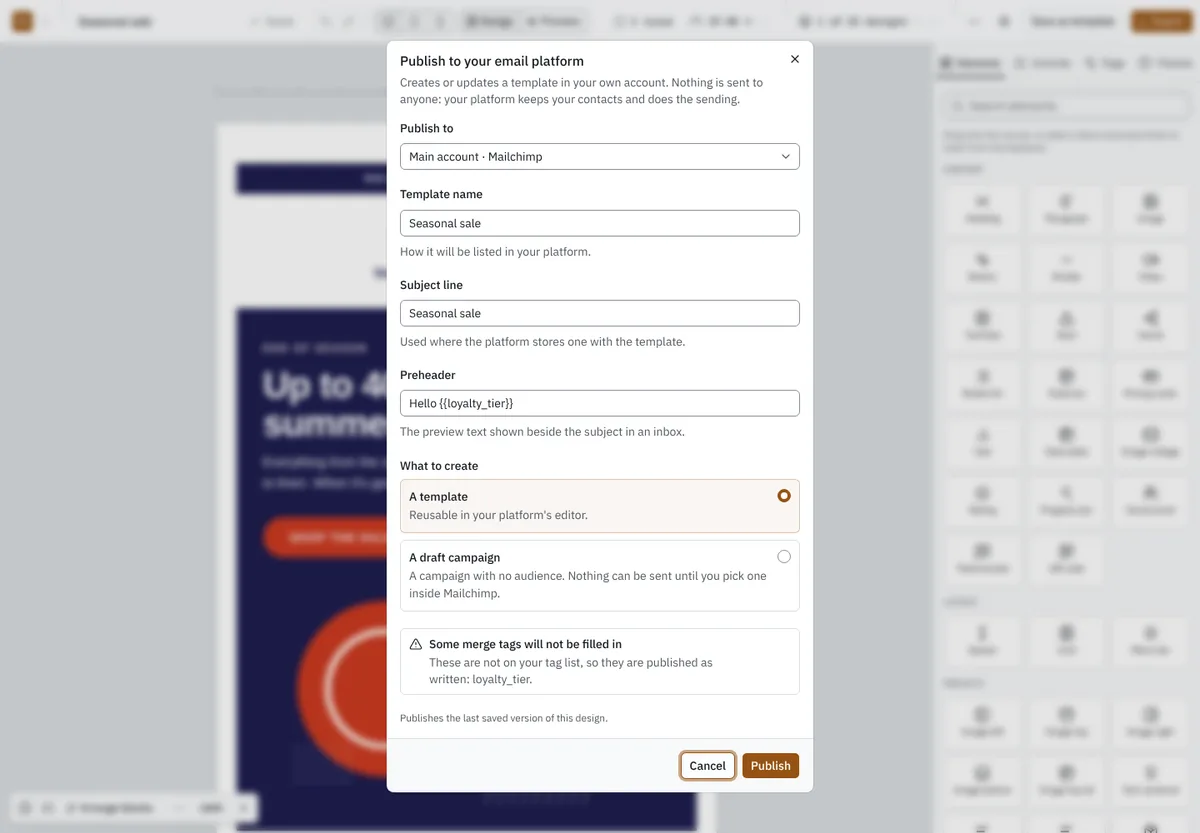
- Open the design and wait for Saved. Publishing uses the last saved version.
- Click Export, then Publish to….
- Choose the connection. Check the template name, subject line and preheader; they start from the design's own and you can change them here without changing the design.
- Click Publish.
When it works, the dialog says so and offers Open in your platform.
Templates and draft campaigns
Every platform gets a template: Mailchimp as a classic template, Brevo as an email template, SendGrid as a dynamic template with an active version, and Klaviyo as a code-editor template.
Mailchimp can also take a draft campaign. It is created with no audience, so nothing can be sent until you choose recipients inside Mailchimp. Each draft is new; publishing again creates another one.
Publishing again
Publishing the same design to the same connection again offers two choices:
- Update the existing template (the default) replaces the content of the template published before, so there is no duplicate to tidy up.
- Publish as new creates a separate template and leaves the earlier one alone.
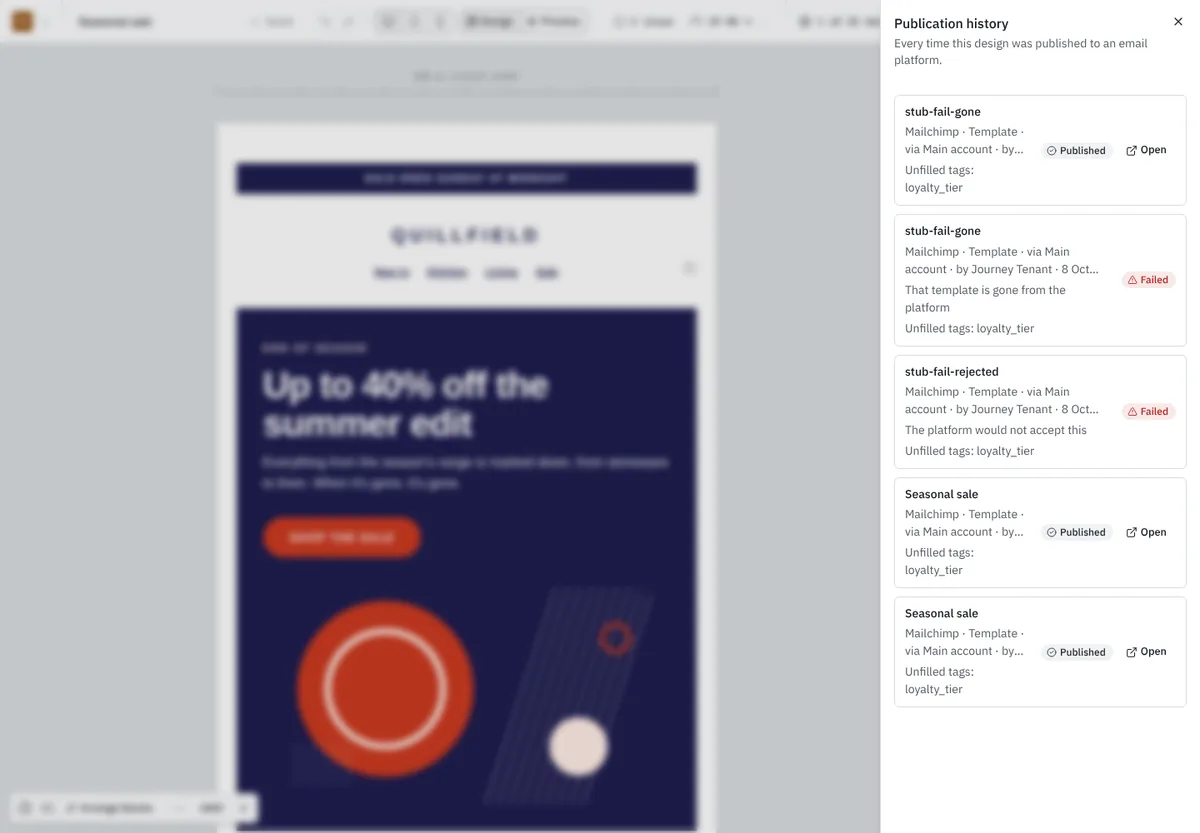
If the earlier template was deleted in your platform, the update cannot find it. The dialog says so and offers Publish as new.
Merge tags
The design is converted to your platform's own merge-tag syntax, exactly as in a download for that platform (*|FNAME|* for Mailchimp, {{ contact.FIRSTNAME }} for Brevo, and so on). Tags that are not on your platform's tag list cannot be converted, so they are published as written. The dialog lists them as a warning before you publish, and the history keeps the list. Fix them in the design, or in your platform after publishing.
Images
Your platform fetches the design's images from this installation, so the installation must be reachable on a public https:// address. If PUBLIC_APP_URL is localhost or plain http://, the dialog says publishing is blocked instead of producing a template with broken pictures. Ask your platform operator to set it; see Configuration.
Publication history
Export, then Publication history, lists every publish of the design: the platform, template or draft, which connection, who published it, when, and a link to open it. Failed attempts are listed with the reason.
What a publish costs
A publish counts as one export against your plan's exports per month. A publish that fails is not counted. If you have used all of the month's exports, the dialog says so and offers the upgrade. Your plan must also include publishing; if it does not, the Integrations card and the dialog say so.
Who can do what
| Owner | Admin | Editor | Viewer | |
|---|---|---|---|---|
| Connect, test and remove platforms | yes | yes | no | no |
| Publish a design and see its history | yes | yes | yes | no |
A platform support person signed in as a member can publish, but can never see or change a connection's key.
When something goes wrong
| Message | What to do |
|---|---|
| That key was not accepted | Copy the key again from your account. For Mailchimp include the -us21 ending. |
| The key is missing a permission | Give the key the access listed above, or create a new one. |
| The platform asked us to slow down | Wait a minute and try again. Nothing was changed. |
| The platform would not accept this | The platform's own reason follows. It is often a size limit (SendGrid allows 1 MB of HTML) or a name that is too long. |
| Could not reach the platform | The connection failed or timed out. Try again in a minute. |
| This platform is turned off | Your platform operator switched it off for this installation. |
| The saved key can no longer be read | The installation's APP_KEY changed without being rotated. Remove the connection and connect it again. |
If a publish succeeds but the result looks wrong in your platform, publish again as new and compare, then check the design with email checks.