Operator guide
Merge tags
Outcome: your customers' merge-tag menu lists exactly the tags their sending service understands.
A merge tag is a placeholder such as {{first_name}} that the customer's sending service replaces with real data when it sends. Mailnib does not fill merge tags in: it inserts them into the design and exports them untouched.
The catalog
Open Settings → Merge tags. Each row is one tag: the token, the label customers see in the menu, and its group.
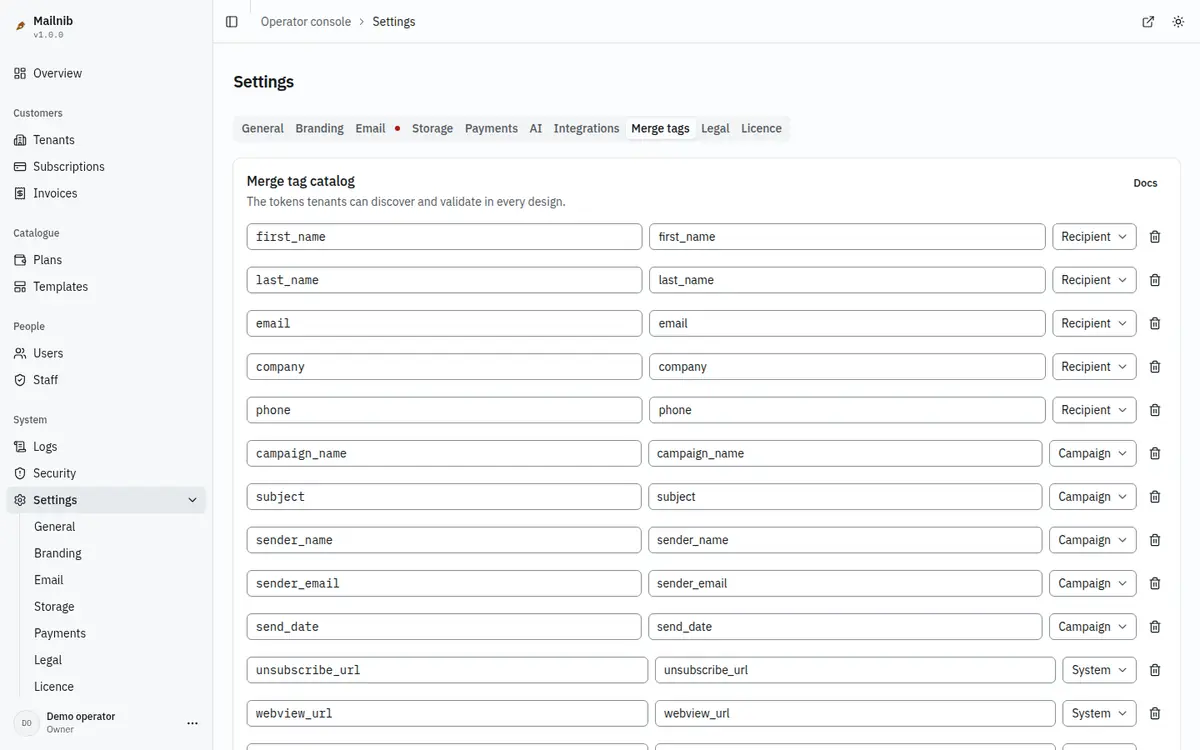
The shipped catalog has eighteen tags:
| Group | Tokens |
|---|---|
| Recipient | first_name, last_name, email, company, phone |
| Campaign | campaign_name, subject, sender_name, sender_email, send_date |
| System | unsubscribe_url, webview_url, preferences_url, current_year, current_date |
| Workspace | company_name, company_address, website_url |
Add, rename or remove a tag
- Click Add token to add a row, or edit a row in place.
- A token must start with a lower-case letter and use only lower-case letters, numbers and underscores, such as
loyalty_points. Each token must be unique. - Remove a row with its bin icon.
- Click Save catalog.
The change reaches every workspace the next time the editor loads.
Match your customers' sending service
Different services use different syntax. Mailnib always writes tags as {{token}}, with an optional fallback written {{token|default}}. If your customers mostly send through one service, name your tokens after that service's fields, so the export needs no editing.
What customers see
In the editor, tags appear as chips that cannot be broken apart by typing. The email checks warn when a design uses a tag that is not in your catalog, or a tag written in capital letters, which most services would not fill in. See Rich text and merge tags.